How to fix a Google Ads "compromised site" disapproval
 By Rahul Sahu11 min readUpdated
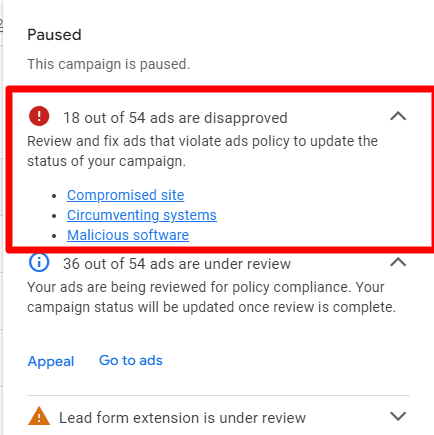
 A compromised site disapproval in Google Ads means the crawler found hacked code on the page your ad points to. The ad is fine. The destination is not, and it will stay disapproved until the code is gone and Google has recrawled it.
The short version, in the order that actually works: read the exact reason in Policy Manager, scan the ad's landing URL to find what was injected, remove it and close the hole it came through, wait out the 72-hour recrawl window, then appeal with “Made changes to comply with policy”. Appealing before the site is clean and recrawled is the most common way this drags into a second week.
Before you change anything, find out what Google is seeing
Most of the time spent on this problem goes into guessing which file is infected. A scan of the exact landing URL in your ad answers that in under a minute, with no account and no card.
Enter your website URL to scan
- No installation required
- Instant results
- Private & Secure
- Google Safe Browsing plus six other blacklists
- Injected scripts and hidden iframes on the page
- Third-party scripts loaded from domains you did not add
- CMS, theme, and plugin versions the page exposes
What "compromised site" means in Google Ads
Google's policy defines it in one sentence: “A compromised site is a site or destination whose code has been manipulated to act in ways that benefit a third party without the knowledge of the site or destination's owner or operator.”
Read that carefully, because two words in it decide how long this takes you. The policy is about code, not about your business, your offer, or your ad copy. And it is about the destination — the page the ad actually lands on, plus everything that page pulls in.
The same policy page lists what Google is looking for: scripts that transmit user data without consent, card skimmers, malware installers, pop-up redirects, and content management systems with a known vulnerability that has already been exploited.
This is a scan result, not a human opinion
Nobody at Google formed a view about your company. An automated crawl fetched your landing page, executed what it loaded, and matched something against a signature. That is why arguing in the appeal text does not work, and why a scan of the same URL usually reproduces the finding in under a minute.
Why the ad stopped when the site looks fine
This is the single most common reason people spend a week on this. You open the page, it loads normally, nothing is defaced, so the disapproval feels like an error. It usually is not. Four things routinely trigger it on a site that looks perfectly healthy:
| What is actually wrong | Why you cannot see it |
|---|---|
| Injected script in the page source | It is obfuscated and often appended far below the visible markup, or it only fires for visitors arriving from a search engine or an ad click. |
| A hidden iframe | Sized to zero pixels or positioned off-screen, so it never paints anything you would notice. |
| A third-party script you did add | A chat widget, heatmap, A/B tool, or affiliate pixel whose own vendor got compromised. Your code is clean; what it loads is not. |
| Conditional or geo-targeted payload | The injected code checks user agent, referrer, or country first. You are a repeat visitor on a desktop in your own country, which is exactly the profile it skips. |
There is a fifth case worth separating out, because the fix is different: the page itself is clean and so is everything it loads, but another page on the same domain is infected. Google's crawl covers the destination and the domain around it, so a forgotten staging subfolder or an old campaign landing page can stop ads pointing at a page that was never touched.
Is it your site or your Google Ads account?
These two get conflated constantly, and they have nothing to do with each other. Sort this out before you start, because the work is completely different.
| Signal | Compromised site | Compromised account |
|---|---|---|
| What the status says | "Destination not working" or "Compromised site" on specific ads | Ads, budgets, or payment methods you did not create |
| Where the problem lives | Your web server and the scripts your page loads | Google account access — credentials, a stale manager-account link, or an OAuth grant |
| Who can fix it | Whoever has server and CMS access | Whoever owns the Google account, plus Google support |
| First action | Scan the landing URL and read the page source | Change the password, revoke sessions, turn on 2-step verification, audit account access |
If both are true at once — and that happens, because the same stolen credentials often open both doors — treat the account first. Cleaning a site while someone else still has your ad account only gives them a working landing page again.
Step 1 — Confirm what Google actually found
Four sources, and they do not always agree. Checking all four is what stops you from cleaning the wrong thing.
Google Ads Policy Manager
Tools → Troubleshooting → Policy Manager. Filter to disapproved and read the exact reason string. “Compromised site” and “Malicious or unwanted software” are different policies with different fixes — if yours says the second one, use the malicious software guide instead.
Search Console → Security issues
This is the report that names affected URLs and the category Google assigned. If you have never verified the property, do it now; without it you are guessing for the rest of this process.
Safe Browsing site status
Google's Safe Browsing site status checker tells you whether the domain is flagged in the list that browsers use. A clean result here with a live Ads disapproval means the ad crawl found something Safe Browsing has not listed — which is normal, they are separate systems.
Scan the exact landing URL from the ad
Not your homepage — the full URL in the ad, query string and all. Malspy checks Google Safe Browsing and six other blacklists, lists the scripts the page loads and which domains they come from, flags hidden iframes, and reports the CMS and plugin versions the page exposes.
Expect disagreement between these four
A Search Console report with no security issues does not clear you, and a clean external scan does not either. Each system crawls on its own schedule with its own signature set. Treat any single finding as real and the absence of findings as inconclusive.
Step 2 — Clean the destination, not just the homepage
Google's own remediation list for this policy is short: remove the code that refers to the compromised domains, work through Help for Hacked Websites, run the Security Issues report, check Safe Browsing, and update your CMS, themes, and plugins to current versions.
In practice that order plays out like this:
Take a copy before you touch anything
Files and database. You are about to delete things, and the copy is also the only evidence of how the entry point worked if you need it later.
Remove the injected code, then find how it got in
Deleting the payload stops the disapproval. It does not stop the reinfection. A vulnerable plugin, a leaked SFTP credential, or a web shell left in an upload directory will put the same code back, sometimes within hours, and the second disapproval lands after you have already filed your appeal.
Audit every third-party script on the destination
Remove anything you do not recognise, and anything you recognise but no longer use. Each one is a domain whose owner can hand your page to someone else.
Rotate credentials and invalidate sessions
CMS admins, database users, hosting panel, SFTP keys, and any API or salt values your framework uses for sessions. Remove admin accounts you cannot account for.
Update the stack
Core, themes, plugins. Google names an exploited vulnerable CMS as a trigger for this policy, so a current version is part of the remediation and not a separate task.
Re-scan and compare
Same URL, same tool as Step 1. You want the findings list to be empty, not shorter.
Step 3 — Wait for the recrawl before you appeal
This is the step that gets skipped, and skipping it is why people appeal three times and conclude the system is broken.
Google's compromised-sites policy page tells you to resubmit after cleanup and to allow up to 72 hours for the recrawl. An appeal reviewed against a cached crawl from before your fix is an appeal against the infected version of the page. It gets rejected, and the rejection tells you nothing about whether your cleanup worked.
Use the wait instead of refreshing the dashboard
Request a review in Search Console's Security Issues report in this window and describe exactly what you removed. Re-scan the URL once a day. If a finding reappears, you have a reinfection rather than a stale crawl, and that is a much more useful thing to learn now than after a second rejected appeal.
Step 4 — File the appeal in Policy Manager
Hover the ad's status and click Appeal, or open Policy Manager and appeal from there. Google offers two options and they are not interchangeable:
| Option | Use it when |
|---|---|
| Made changes to comply with policy | You found something and removed it. This is the correct choice in almost every real case. |
| Dispute decision | You have checked all four sources from Step 1, found nothing, and believe the detection is wrong. Expect this to take longer and to need specifics. |
Track the outcome in Policy Manager rather than waiting for an email. Google does not publish a turnaround time for these reviews, so any number you read elsewhere is somebody else's anecdote, not a commitment.
The full ordering and the common ways an appeal gets rejected are in the appeal guide.
How much time you have before suspension
Google's two policy pages read differently on this, and the difference matters, so here is both without smoothing it over.
The compromised sites policy page states that “a warning will be issued at least 7 days prior to any suspension of your account.” The broader Abusing the ad network page, which covers both compromised sites and malicious software, classes these as egregious violations with potential account suspension on detection and without prior warning.
Plan for the stricter of the two
Treat the 7-day warning as the likely path and the no-warning suspension as the one you cannot afford to test. Either way the useful conclusion is the same: the clock is on the cleanup, not on the appeal, and pausing the campaign does not pause the policy.
Four things that will not fix this
Each of these gets tried first because it is quick, and each one costs you a day.
- Pausing or deleting the ad. The ad was the symptom. The destination is what got flagged, and the flag stays on the destination.
- Swapping in a different landing page URL. The policy covers the destination and the domain around it. A new path on the same infected domain inherits the problem, and repeatedly rotating URLs to keep ads running looks like evasion.
- Appealing with an explanation. An automated crawl found code. Nothing you write changes what the next crawl sees.
- Restoring a backup without dating it. If the backup predates the infection you are fine. If it postdates it you have just reinstalled the payload, and you now also believe the site is clean.
What a scanner can and cannot tell you
Worth being straight about this, because it changes what you do next. An external scan sees what a visitor's browser sees: the rendered page, the scripts it loads, the domains those come from, the blacklist status of your domain, and the software versions the page advertises.
It cannot see:
- Server-side code, so a PHP backdoor that only activates for a specific request parameter is invisible from outside.
- Files that are present but never loaded by the page you scanned — a shell sitting in an uploads directory produces no external symptom until something calls it.
- Database-stored payloads on pages you did not scan, which is the usual shape of a mass-injection across a CMS.
So a scan is the right first step and the wrong only step. It tells you fast whether something is wrong and usually points at the file or the third-party domain. Confirming the site is clean means also looking at server-side files, access logs, and scheduled tasks — which needs server access, not a scanner.
Keeping it from happening again
The expensive part of this was never the cleanup. It was the days the campaign was down while you worked out what was wrong. Two things shorten that for next time.
Monitor the destination, not the homepage. Your ad spend points at specific URLs. Those are the ones worth checking on a schedule, and a change in the script list is the earliest signal you will get — it shows up before a blacklist entry and well before a disapproval.
Keep the third-party script list short and reviewed. Every tag on a landing page is a domain that can be compromised on your behalf. The ones that cause this are almost always tools nobody has opened in a year.
Malspy can watch a domain on a schedule and alert on a change, which is the version of this that does not depend on remembering. The site compromise check walks through reading a scan result if you want to interpret one properly first.
Frequently asked questions
- How long does Google take to approve ads once the site is clean?
Google does not publish a review turnaround for this, so treat any specific number you read as anecdote. The one figure Google does publish is the recrawl window — up to 72 hours after you resubmit — and appealing before that has elapsed is the most common reason a correctly-cleaned site gets rejected again.
- My ads are disapproved but Search Console shows no security issues. Why?
They are separate systems with separate crawls and separate signature sets. Search Console reporting nothing clean-bills nothing; it only means that report has not flagged it. Check the Ads Policy Manager reason string, Safe Browsing, and a direct scan of the ad's landing URL before concluding it is a false positive.
- Can I point the ad at a different page to get it running again?
No. The policy applies to the destination and the domain around it, so another path on the same domain carries the same problem. Rotating landing URLs to keep ads serving while the site is still flagged is also the kind of pattern that attracts a harsher response than the original disapproval.
- Is "compromised site" the same as "malicious software"?
No, and the Policy Manager string tells you which one you have. Compromised site means your code was manipulated by someone else. Malicious or unwanted software means the destination distributes software that harms users or misleads them about what it does — which can be true of a site that was never hacked. The malicious software guide covers that policy and the unwanted-software variant separately.
- Do I have to pay someone to remove the malware?
Not necessarily. If the injection is in page markup or a known-bad plugin, and you have server access plus a pre-infection backup, this is often a few hours of work using Google's Help for Hacked Websites. Paying for removal makes sense when you do not have server access, cannot find the entry point, or the site reinfects after you clean it — the third one being the clearest signal that the backdoor is still there.
- My Google Ads account was compromised, not my website. Does this guide apply?
No. That is an account-access problem: change the Google account password, revoke active sessions and third-party access, enable 2-step verification, review manager-account links and user permissions, then contact Google Ads support about any spend you did not authorise. Nothing on your web server is involved.
- The site was cleaned weeks ago and ads are still disapproved. What now?
Re-scan the landing URL first. In most cases the finding is back, which means the entry point was never closed and you are looking at a reinfection rather than a stuck review. If the scan is genuinely clean and the recrawl window has passed, appeal with “Made changes to comply with policy” and, if that fails, escalate through Google Ads support with the Search Console review history attached.